.png?width=150&height=59&name=Ampd_Logo_Full_color%20(3).png)
-
Give the business manager who owns the page, access to the ad account and pixel.
- Ad account & pixel owner logs into account
- Select Ad accounts on left hand side of the navigation bar
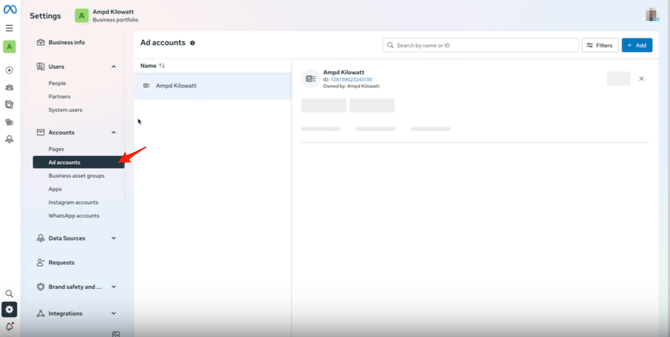
- Select Partners
- Select Assign Partner
- Enter the ID of the business owner who owns the Page
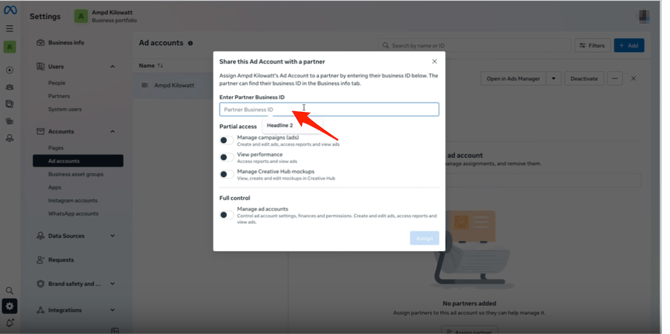
- Select Manage ad accounts under Full control & select Assign
- Select Dataset & pixels
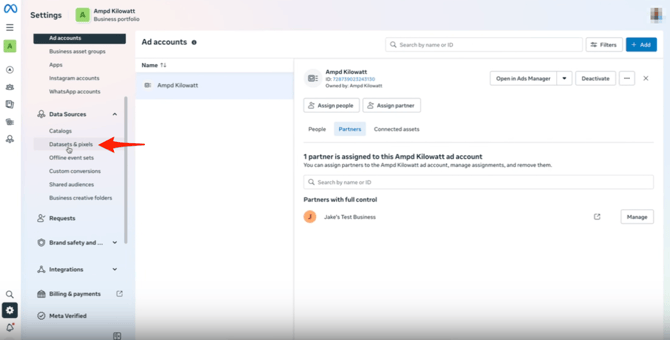
- Select Partners
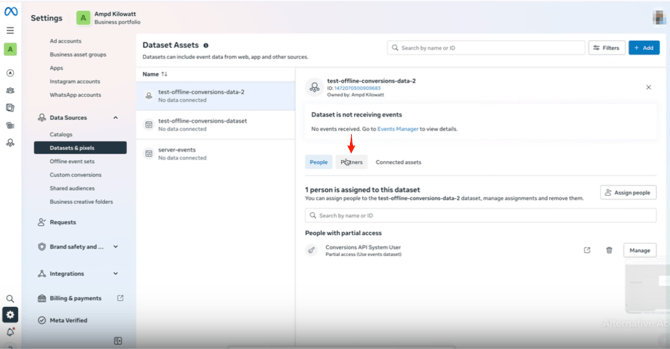
- Select Assign Partner
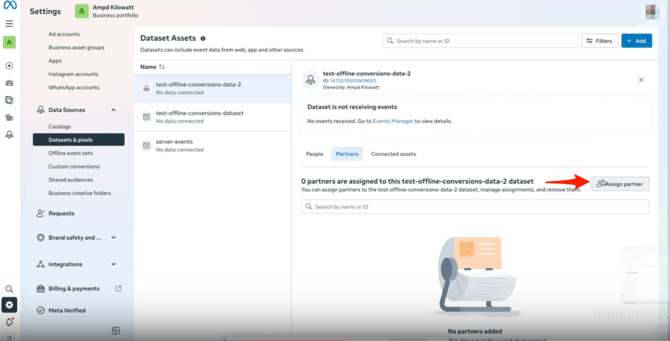
- Enter the ID of the business owner who owns the Page
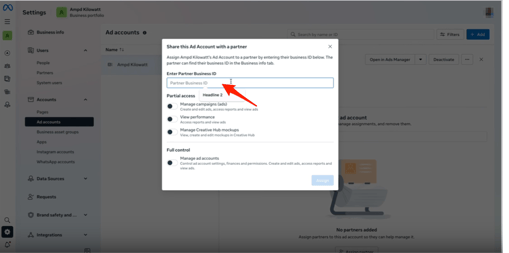
- Select Manage events dataset under Full control & select Assign
- Select Ad accounts on left hand side of the navigation bar
- Ad account & pixel owner logs into account
2. The page business owner needs to accept the access request
-
- Page owner logs into account
- Select Dataset & pixels
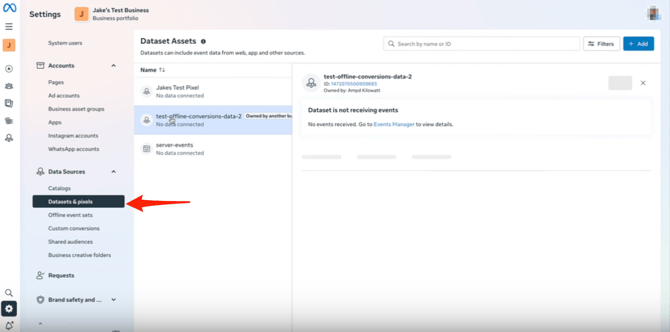
- There will be an option where the arrow is to accept the sharing of the pixel. Select Accept
- Select Dataset & pixels
- Page owner logs into account
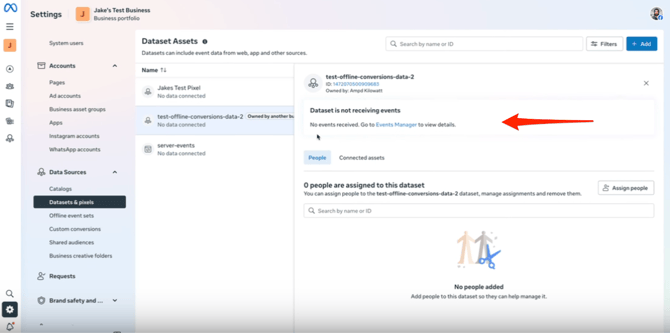
3. Login to Ampd and disconnect Meta then reconnect. This time select the business portfolio that owns the Page and now the Ad account, Page and Pixel should all be selectable
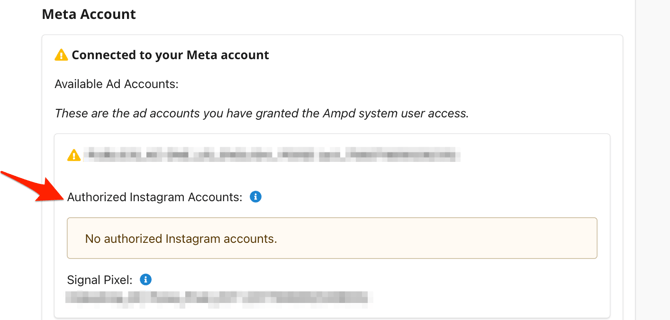
4. If you see that there is no authorized instagram account, follow the steps below:
-
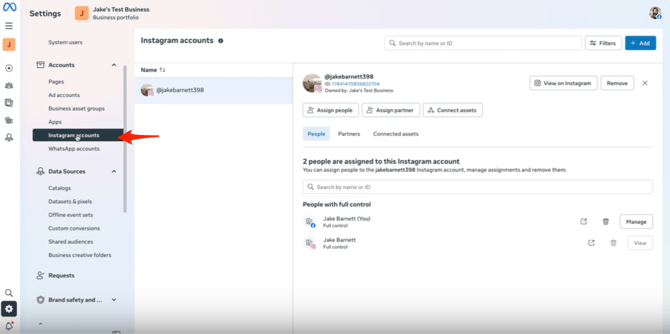
- Page business owner will login to Meta account
- Select Instagram accounts on lefthand navigation bar
- Select Connect assets
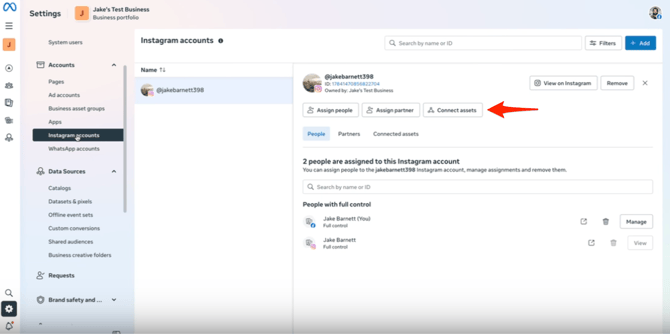
- Select the Ad account that is being connected and then select Add
5. Refresh Ampd you should see green checkmarks confirming you are all set!