.png?width=150&height=59&name=Ampd_Logo_Full_color%20(3).png)
Prerequisites
Before proceeding, ensure you have admin access to your Meta Business Manager for the Ad accounts, Pages and pixels you plan to use with Ampd.
1. Open Partner Settings
-
Go to Meta Business Manager
-
Navigate to Business Settings
-
Under the Users section, click Partners
-
Click the blue “Add” button
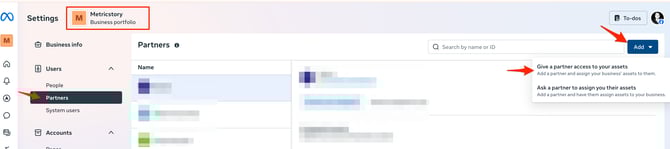
2. Add Ampd as a Partner
-
Select “Add a partner to share assets with”
.jpg?width=478&height=242&name=Connect%20Meta%20Ads%20in%20Ampd%20-%20step%202%20(1).jpg)
- Enter the following Partner ID: 2574860289406814
-> This ID corresponds to Metricstory, the parent company of Ampd.
3. Assign Assets to
Once the partner is added:
-
Select Metricstory (Ampd) from your Partners list
-
Click “Assign assets”
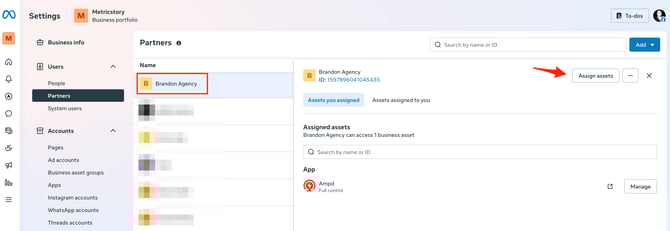
-
Choose the assets Ad Account, Page and Pixel to share with Ampd
-
Ad Accounts
.jpg?width=518&height=391&name=Connect%20Meta%20Ads%20in%20Ampd%20-%20step%205%20(1).jpg)
-
Meta Pixels
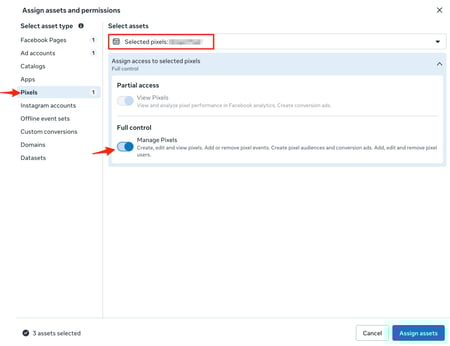
-
Facebook Pages
.jpg?width=426&height=321&name=Connect%20Meta%20Ads%20in%20Ampd%20-%20step%204%20(1).jpg)
-
-
Grant the permissions as seen in the screenshots.
Troubleshooting Tips
-
Ensure you entered the correct Partner ID
-
If you don’t see assets available to assign, verify your admin permissions
-
Double-check that you’re in the correct Business Manager account
-
If access issues persist, try removing and re-adding the partner