.png?width=150&height=59&name=Ampd_Logo_Full_color%20(3).png)
-
Ampd platform connected to Amazon
-
Ampd platform connected to Meta
-
Grant Meta partner access
-
Amazon.com allow listed in Meta Ads on the Pixel
Connect Ampd platform to Amazon
-
Go to the Ampd platform.
-
Click the settings gear in the bottom-left of the navigation.
-
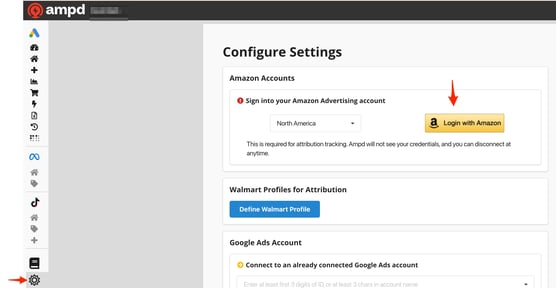
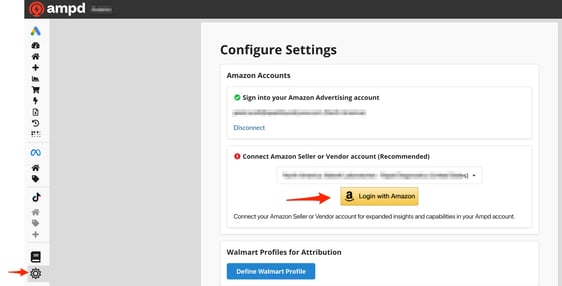
Under the appropriate section, click "Login" and follow and accept the permission prompts (ensure you have admin privileges on Amazon Ads, as this is required to connect both your Amazon Ads and Vendor/Seller accounts):
Amazon Ads Connection:
Amazon Seller or Vendor Connection:
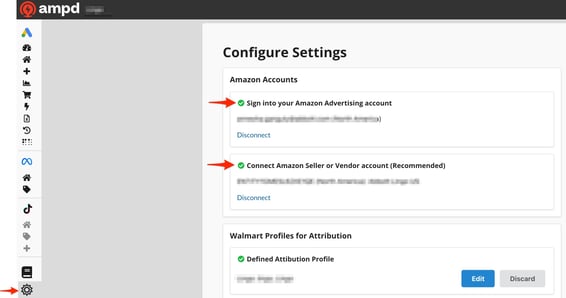
Once the connection is complete, the settings screen will display a green checkmark indicating a successful connection.
Connect Ampd platform to Meta
-
Go to the Ampd platform.
-
Go to the settings gear on the left-hand, bottom of the navigation.
-
Click Login under the Meta Account section.
.jpg?width=538&height=339&name=Connect%20Meta%20Ads%20in%20Ampd%20-%20step%201%20(2).jpg)
-
->Note that the person establishing the Meta to Ampd connection needs to have
Full Control of everything on the Ad account, Page, and Pixel.
-
-
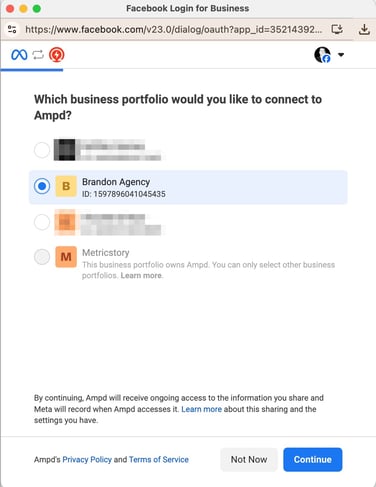
Select the business profile you would like to connect to Ampd.
-
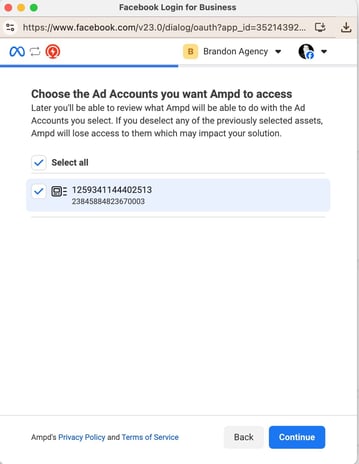
Next, choose the Ad Accounts you want
-
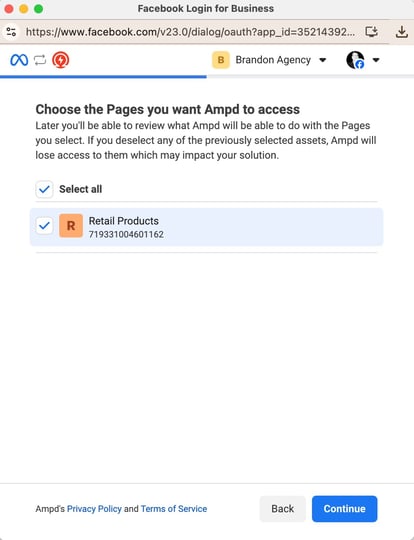
Continue to choose the Pages the ads will be using
-
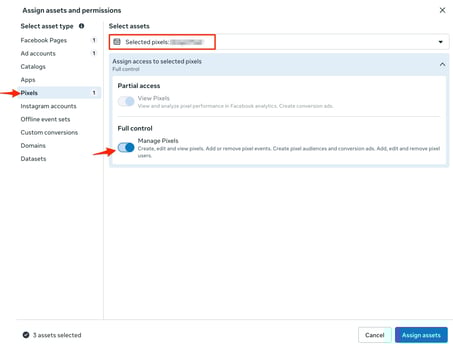
Lastly, choose the Pixels you want Ampd to access
-
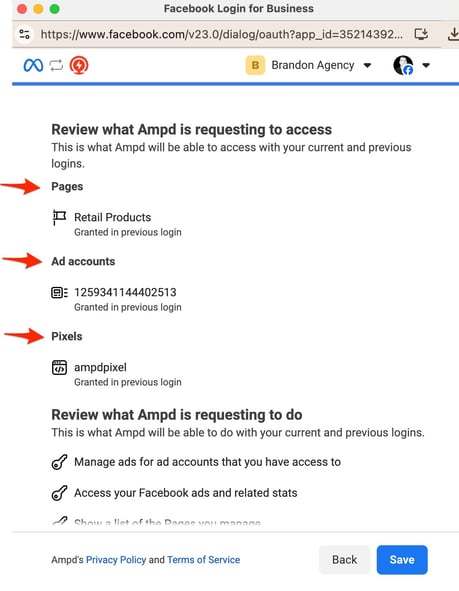
You should see this confirmation page indicating that the intended pages, ad accounts, and pixels have each been provided access.
-
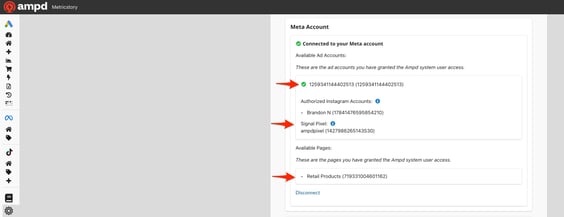
Once the permissions are fully accepted, the Meta account section will show the available accounts with a green checkmark:
Grant Meta Partner Access
1. Open Partner Settings
-
Go to Meta Business Manager
-
Navigate to Business Settings
-
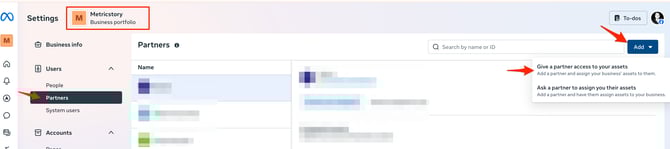
Under the Users section, click Partners
-
Click the blue “Add” button
2. Add Ampd as a Partner
-
Select “Add a partner to share assets with”
.jpg?width=478&height=242&name=Connect%20Meta%20Ads%20in%20Ampd%20-%20step%202%20(1).jpg)
-
Enter the following Partner ID: 2574860289406814
-> This ID corresponds to Metricstory, the parent company of Ampd.
3. Assign Assets to
Once the partner is added:
-
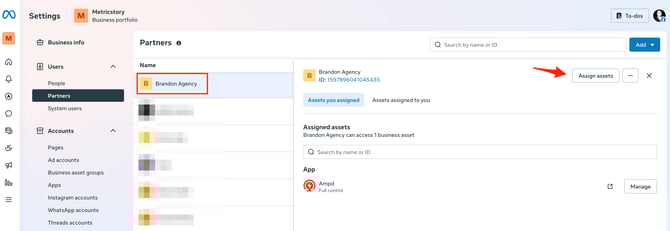
Select Metricstory (Ampd) from your Partners list
-
Click “Assign assets”
-
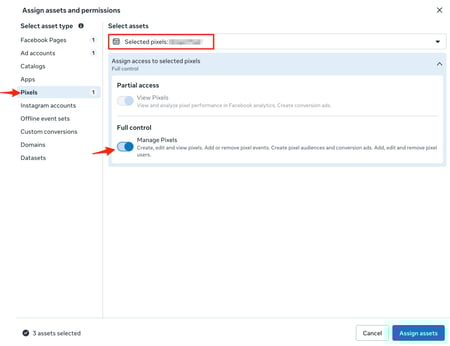
Choose the assets Ad Account, Page and Pixel to share with Ampd
-
Ad Accounts
.jpg?width=518&height=391&name=Connect%20Meta%20Ads%20in%20Ampd%20-%20step%205%20(1).jpg)
-
Meta Pixels
-
Facebook Pages
.jpg?width=426&height=321&name=Connect%20Meta%20Ads%20in%20Ampd%20-%20step%204%20(1).jpg)
-
-
Grant the permissions as seen in the screenshots.
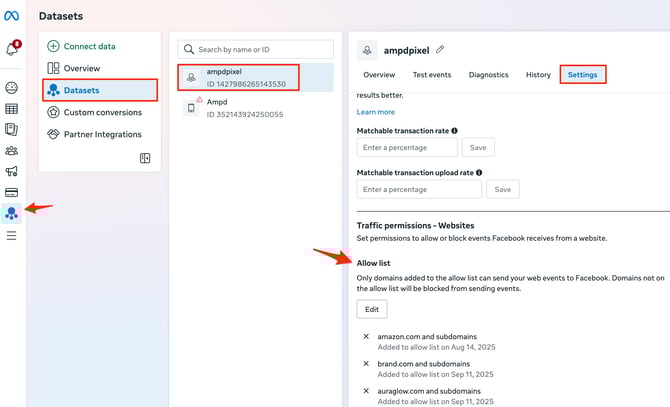
Amazon.com Allow Listed in Meta Ads on the Pixel
1. Navigate to Data Sources
-
Go to Meta Business Manager
-
Open Events Manager
-
Select Data Sources
-
Choose your default Pixel
2. Create an Allow List
-
In the Pixel view, go to the Settings tab
-
Scroll to Traffic Permissions
-
Click “Create allow list”
This setting ensures only approved domains can send event data to your pixel.
3. Add Amazon Domains
Enter the following domains:
-
www.amazon.com -
amazon.com
These domains must be included so that Meta accepts events routed through Ampd from Amazon.
4. Save Your Settings
-
Click Save to apply the changes
-
Confirm that the domains appear as Allowed